Overview
The Pixelator converts textures, sprites, and full sprite sheets into clean pixel art using content-aware sampling — not a simple resolution reduction. It preserves edges and dominant shapes, can restrict colors to optimized or classic palettes, and outputs game-ready PNG assets with correct import settings and rebuilt sprite metadata. Source images are never modified unless you explicitly choose Replace Originals.
Opening the Tool
- Menu:
- Right-click any image, sprite, or folder in the Project window and choose
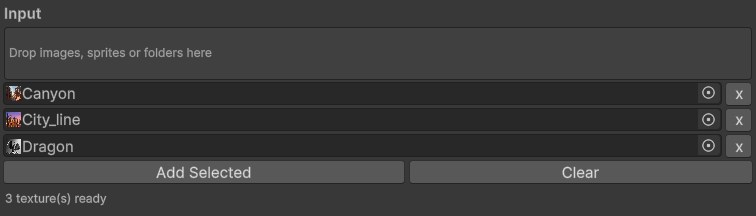
The Input section: drop images, sprites or whole folders, and the counter shows what will be converted.
Workflow
- Add input — drag images, sprites, or folders into the drop area (or use Add Selected). Folders are scanned recursively; duplicates are ignored. The counter shows how many textures will be converted.
- Choose output resolution — see the Output table below.
- Tune the style — sampling mode, flat shading, palette, dithering, and optional adjustments, with a live before/after preview. Pop Out opens the preview in a separate window with zoom controls (Fit, 1:1, slider, or Ctrl+scroll) for close pixel-level inspection.
- Convert — new PNGs are created with your chosen suffix. A progress bar shows batch status, and the Console lists every generated file.
Resolution

The Resolution section: how big the pixel art comes out, and how it scales in your scene.
| Mode | Downscale Factor: every N×N source block becomes one pixel (best for sprite sheets — use a factor that divides the cell size evenly). Longest Side / Width / Height: target an exact pixel size. |
|---|---|
| Upscale Output | Saves the result re-enlarged (×2 / ×4 / ×8 / near source size) with sharp nearest-neighbor scaling. Useful when you want big files that still look like pixel art. |
| Keep World Size | Rescales Pixels Per Unit so converted sprites occupy the same world-space size as the originals — drop them into an existing scene and animations, prefabs and layout keep working. |
Style Settings
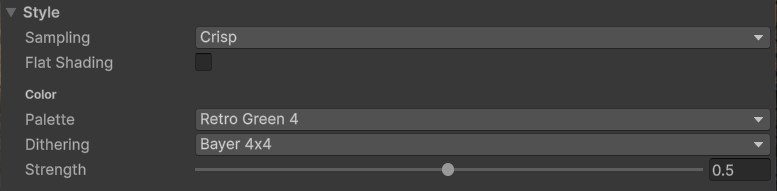
The Style section: sampling, flat shading, palette and dithering.
| Sampling | Crisp (default): locks each pixel onto the dominant color of its source block — sharp edges, no mud. Balanced: mix of dominant and averaged color. Smooth: soft averaged look. |
|---|---|
| Flat Shading | Turns realistic imagery into a hand-painted, “gamey” look: noisy gradients are merged into clean flat color planes (edges stay sharp), and lighting is collapsed into a few cel-style shade bands with a slight color boost. Crank Intensity up to push the result further from photo-real — fewer, bolder bands and flatter regions. Great on photos and painterly art; pairs well with Auto palettes. |
| Palette | Full Color: no restriction. Auto: builds an optimized palette from the image (2–64 colors).
Retro Green 4 / Vivid 16 / Fantasy 16 / Grayscale: built-in fixed palettes.
Custom Image: uses the unique colors of any image you assign — six ready-made swatch strips are included
in the Swatches folder (Warm Sunset, Cool Twilight, Forest, Neon Arcade, Mono Amber, Mono Green),
and any image with your own colors works the same way. |
| Dithering | Ordered (Bayer) dithering blends palette colors in retro patterns. Requires a palette; strength is adjustable. |
Adjustments & Effects
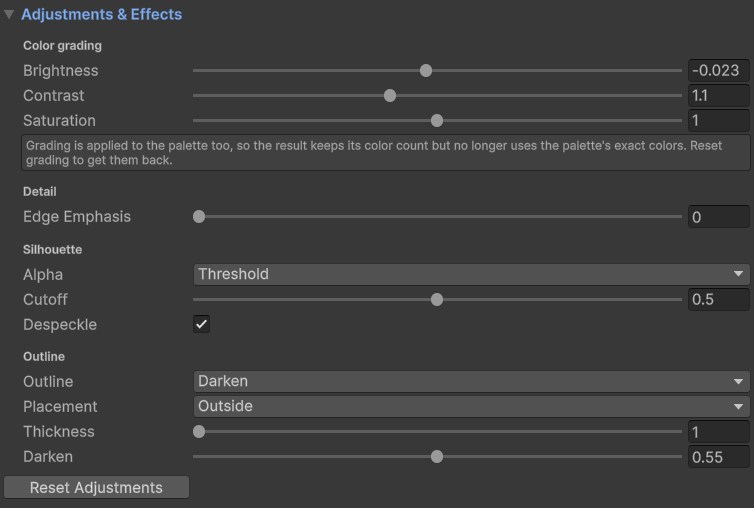
Color grading, detail, silhouette and outline controls.
| Brightness / Contrast / Saturation | Standard color grading applied before palette mapping. |
|---|---|
| Edge Emphasis | Pre-sharpens the source so fine details survive aggressive downscaling. |
| Alpha | Threshold (recommended): hard transparency cutoff for clean pixel-art silhouettes. Smooth: keeps soft alpha gradients. |
| Despeckle | Removes stray single pixels and faint fringe pixels for a cleaner result. |
| Outline | Draws an outline along the silhouette: Darken shades existing colors, Solid Color uses a fixed color. Thickness is adjustable (1–8 px), and Placement puts it Inside the silhouette, Outside it (grows the sprite — leave padding around sprite cells), or Middle. Requires transparent surroundings. |
Output Files
Where the results land, and whether your sources survive.
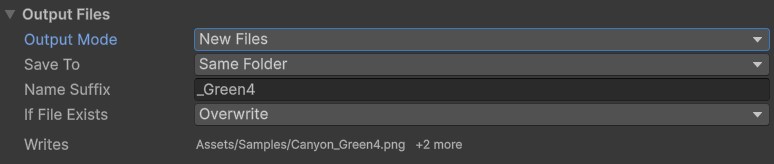
New Files: a separate PNG is written and your sources are left alone.
| Output Mode | New Files (default): writes a separate PNG and never modifies your sources. Replace Originals: overwrites the source assets in place. |
|---|---|
| Save To | New Files only. Same folder as each source, or one custom project folder for the whole batch. |
| Name Suffix | New Files only. Appended to the output file name; blank falls back to _Pixel. |
| If File Exists | New Files only. Overwrite replaces a previous conversion of the same name; Keep Both gives the new file a unique name. |
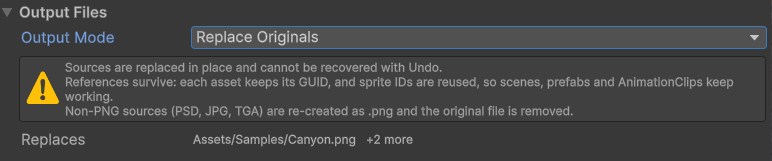
Replace Originals states exactly what it will do before you press Convert.
Whichever mode you pick, a line under the settings shows the exact path the next Convert will write, so the outcome is never a guess. A confirmation dialog appears before anything on disk is replaced or deleted.
.png and the original file is removed. Anything that cannot be converted safely is skipped with a
reason in the Console rather than damaged.Live Preview
Every setting updates a before/after preview as you change it — the left half is the original, the right half is the real converted result at the resolution you chose.
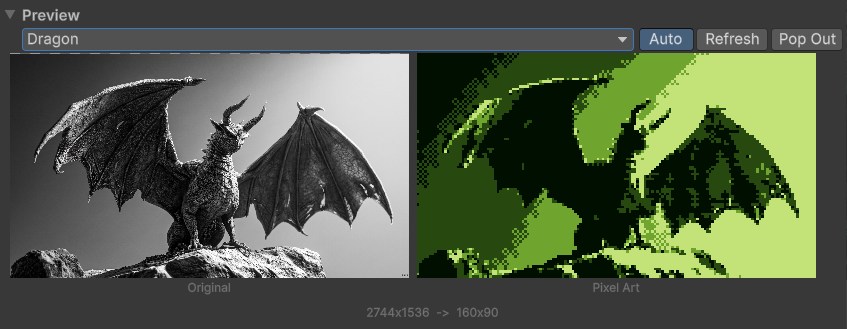
The in-window before/after preview.
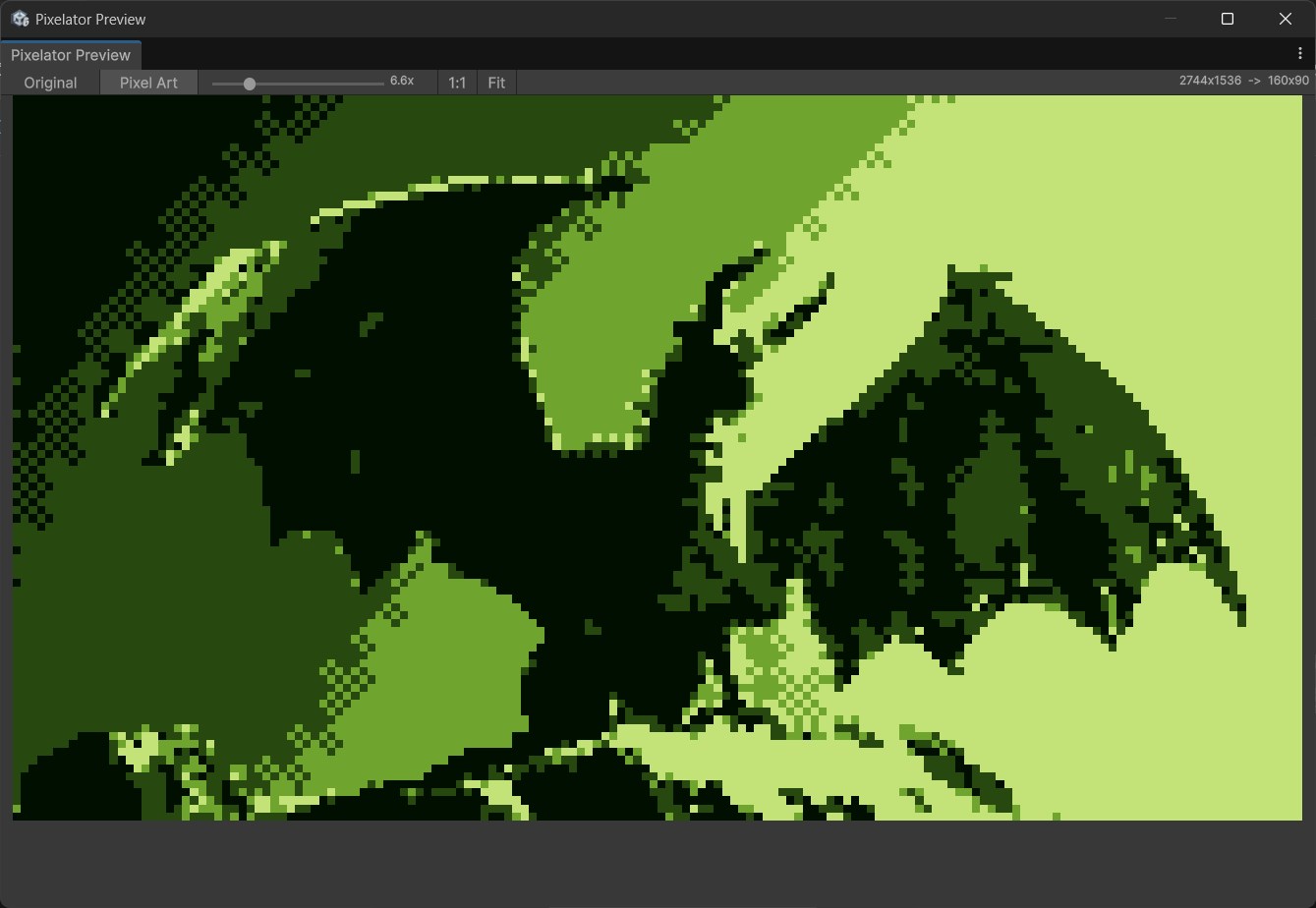
Pop Out opens a resizable window with Fit, 1:1 and Ctrl+scroll zoom for pixel-level inspection.

Convert runs the whole batch and reports every file in the Console.
Before / After Gallery
Every sample below was produced by The Pixelator, unedited. In the split samples the left half is the original and the right half is the converted result, nearest-upscaled back to display size — exactly what Upscale Output saves. The last three are captured in the Unity Editor, because sheet re-slicing, world size and batch conversion only make sense in context.
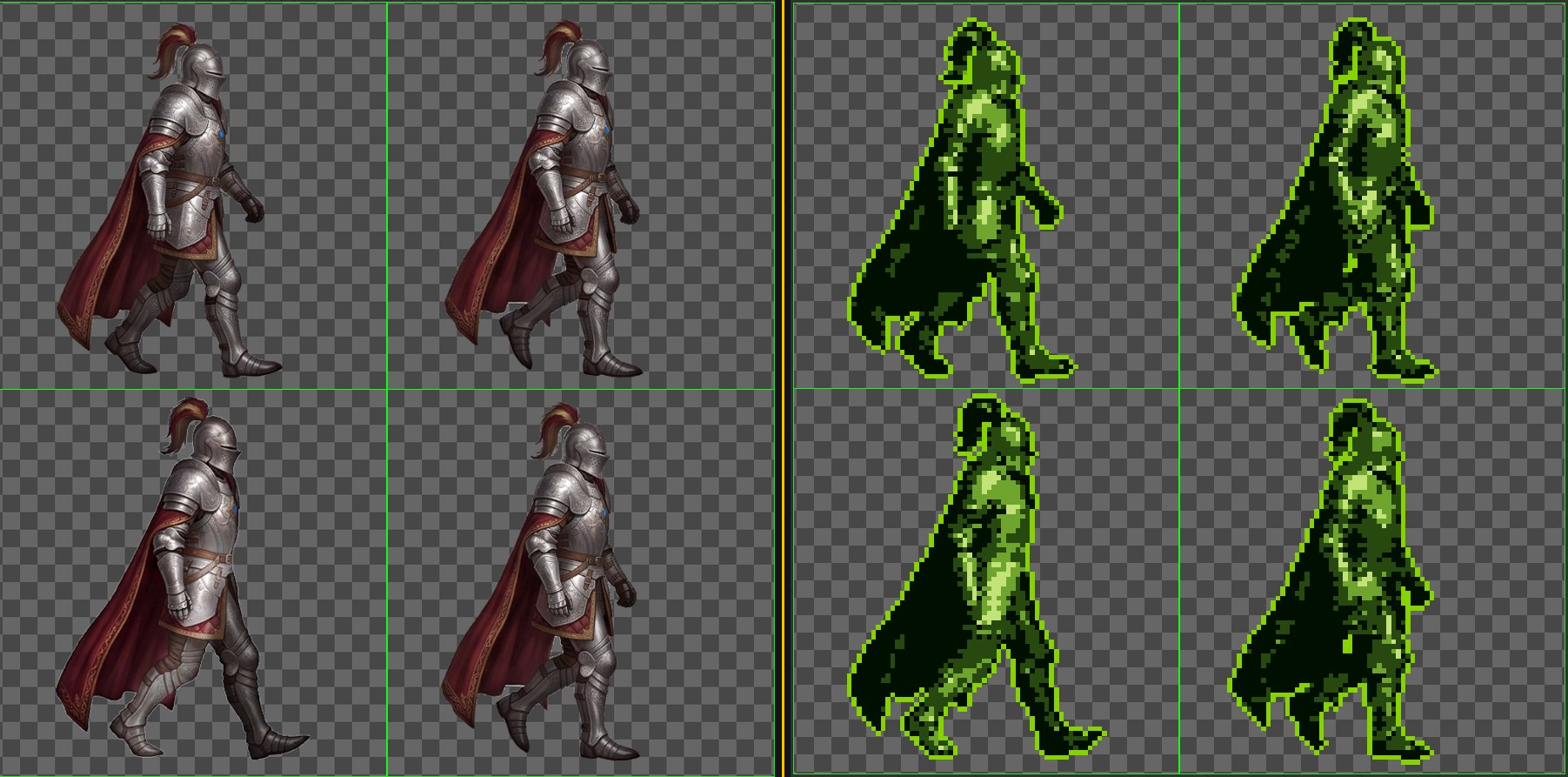
Sprite sheets: cell isolation + metadata rebuild — a 4-frame walk cycle, 512×512 cells → 64×64. Every cell is resampled in isolation, so neighbouring frames never bleed into each other, and the sprite rects, names and custom pivots are rebuilt at the new resolution. The green cell outlines are Unity’s own slices on the converted sheet — the sheet re-slices itself, with nothing redrawn by hand.
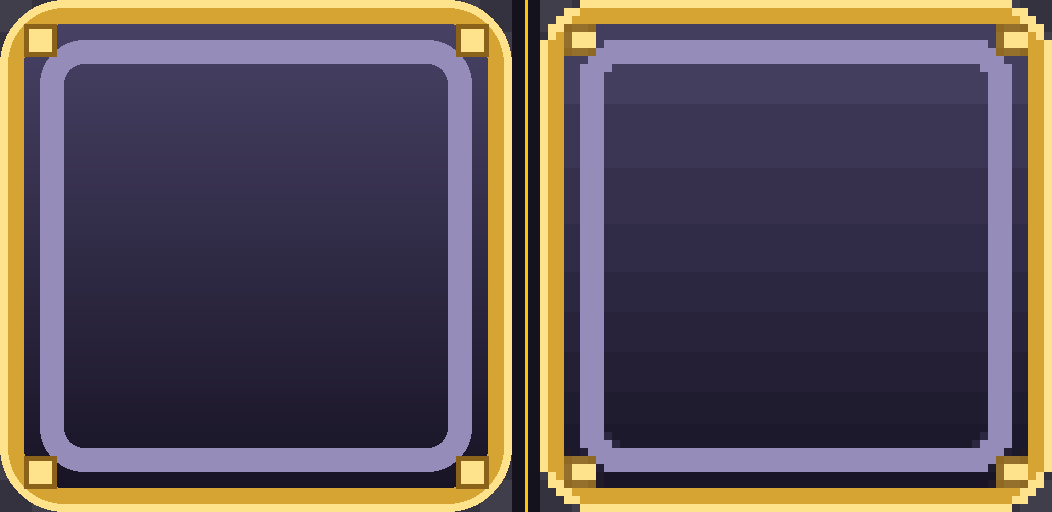
9-slice borders rebuilt proportionally — UI sheet, 512×512 cells, Downscale Factor 8, Auto Palette 16. Each sprite keeps its own border, rescaled exactly with the resolution: the panel's 96 px border becomes 12 px, the button's 72 px becomes 9 px, the frame's 88 px becomes 11 px, and the bar's asymmetric 60/152 becomes 8/19. Stretch the converted sprites in a UI and the corners stay crisp — no re-authoring, no re-measuring.
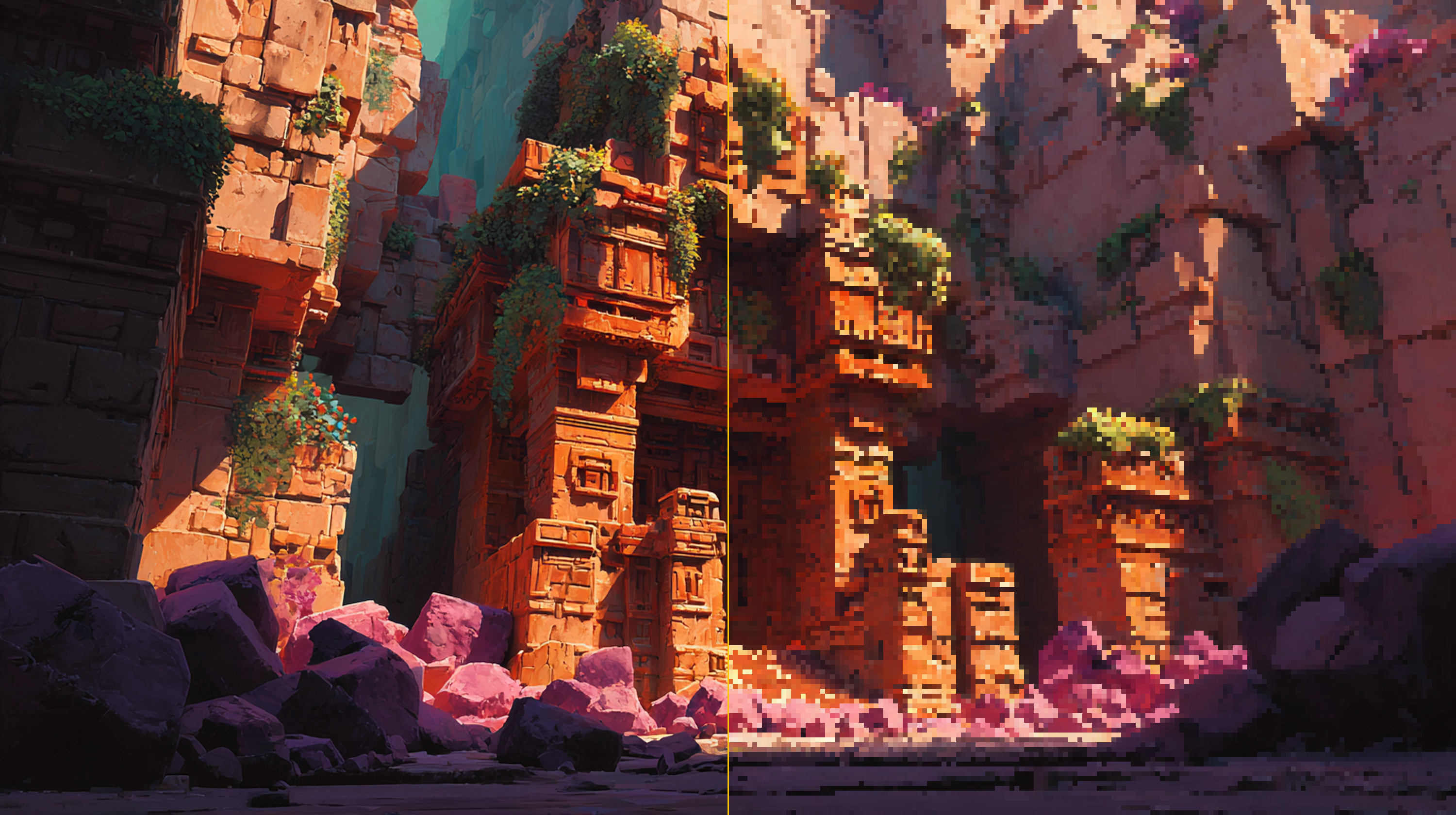
Content-aware Crisp sampling — painterly scene, Downscale Factor 20, Full Color, no extras. Dominant-color sampling locks every output pixel onto the strongest color in its source region, so rock edges, sky banding and fine detail stay readable where plain scaling turns to mush.
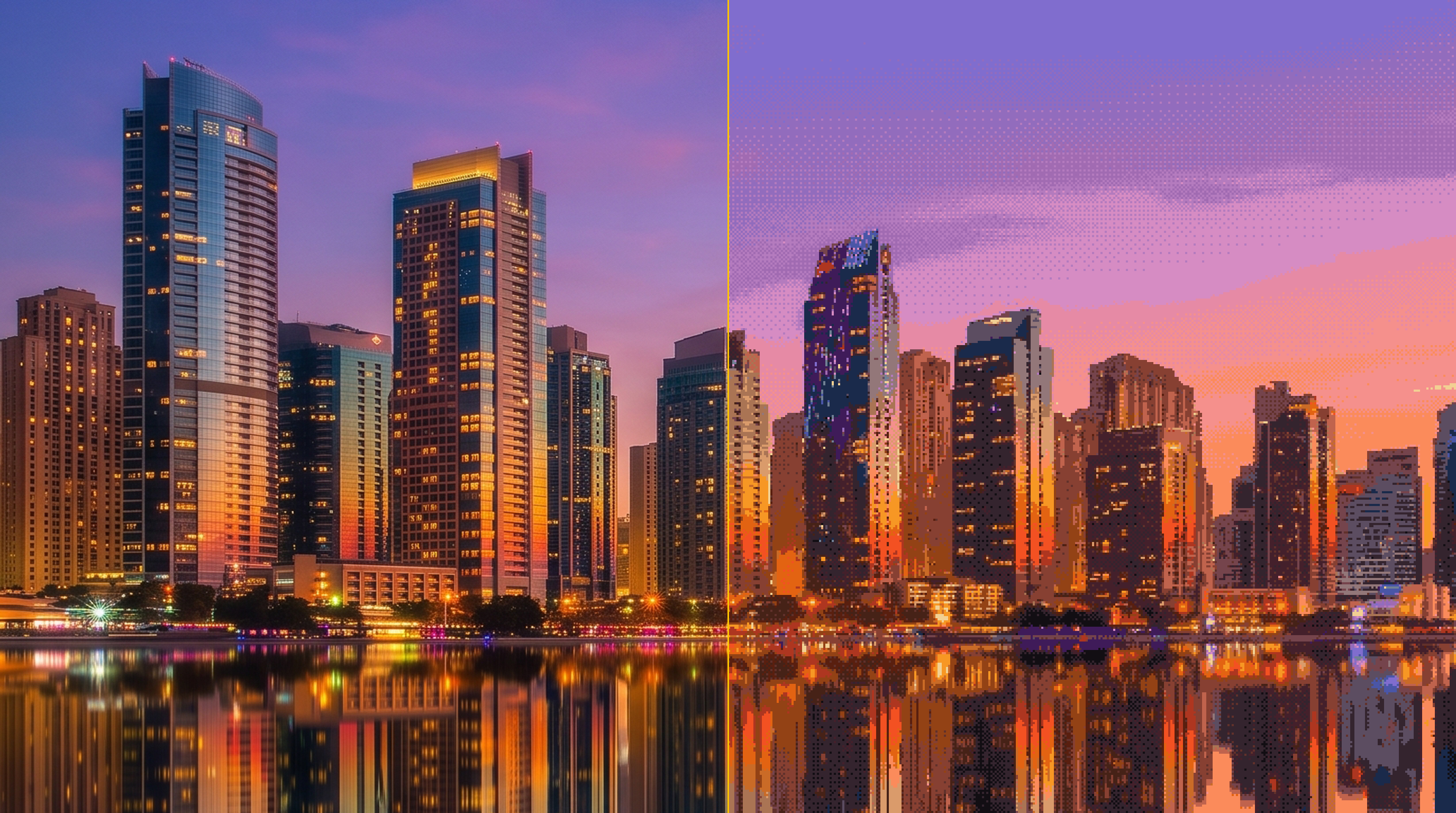
Flat Shading via the bundled Flattened Environment 4x Upscaled preset — photoreal source, Downscale Factor 4, Flat Shading 0.6, Auto Palette 32, soft Bayer 4×4 dithering, Edge Emphasis 0.25, saved ×4 nearest-upscaled. Gradients merge into flat color planes for a hand-painted game-background look — one preset click, no tuning.
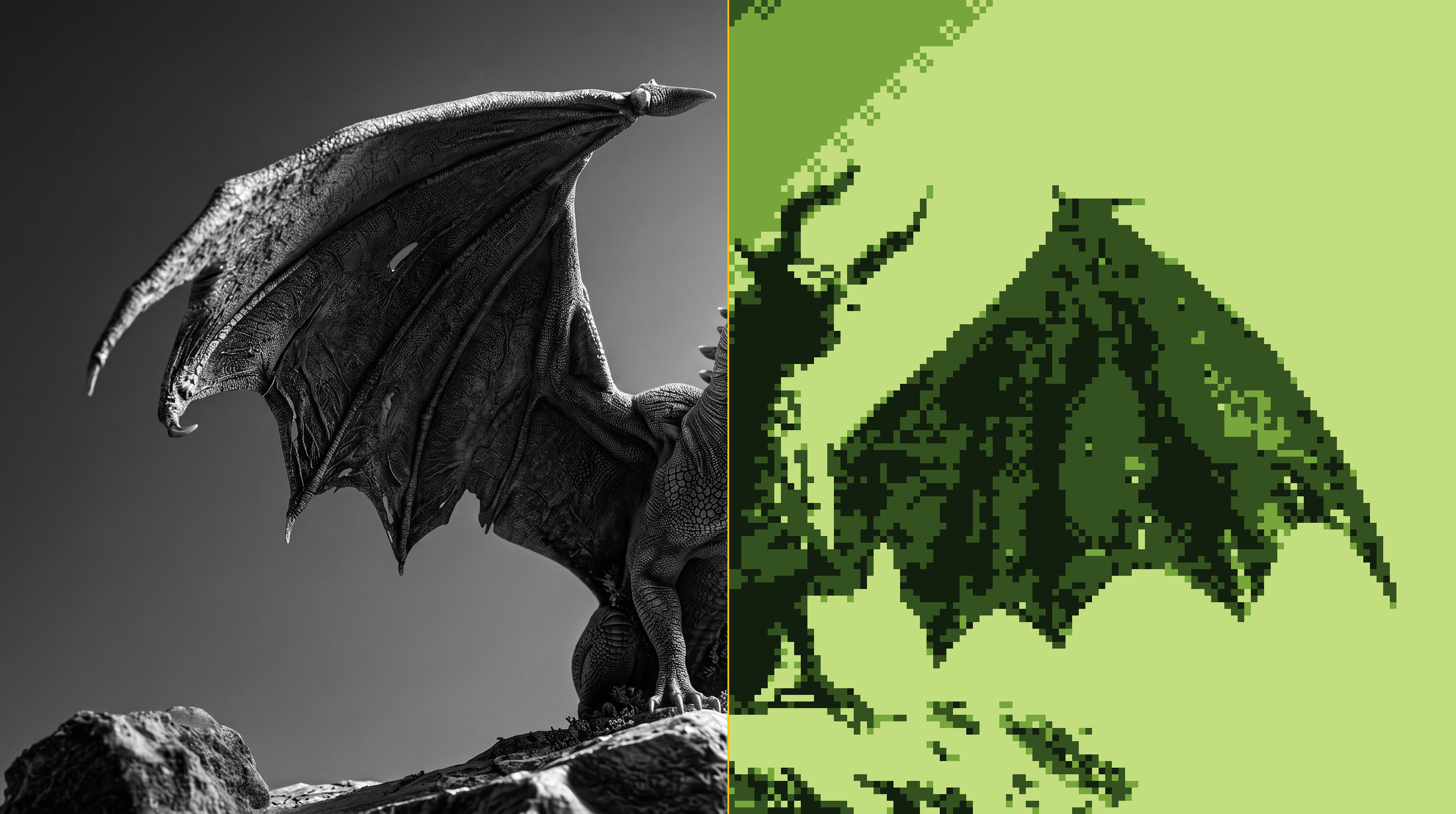
Fixed palette + Bayer 4×4 dithering (Strength 0.5) — bold-shape subject, Longest Side 220, slight Brightness/Contrast lift, Retro Green 4. Fixed palettes remap the whole image to a small set of colors; dithering blends the four shades into gradients. Vivid 16, Fantasy 16, Grayscale and Custom Image palettes work the same way.
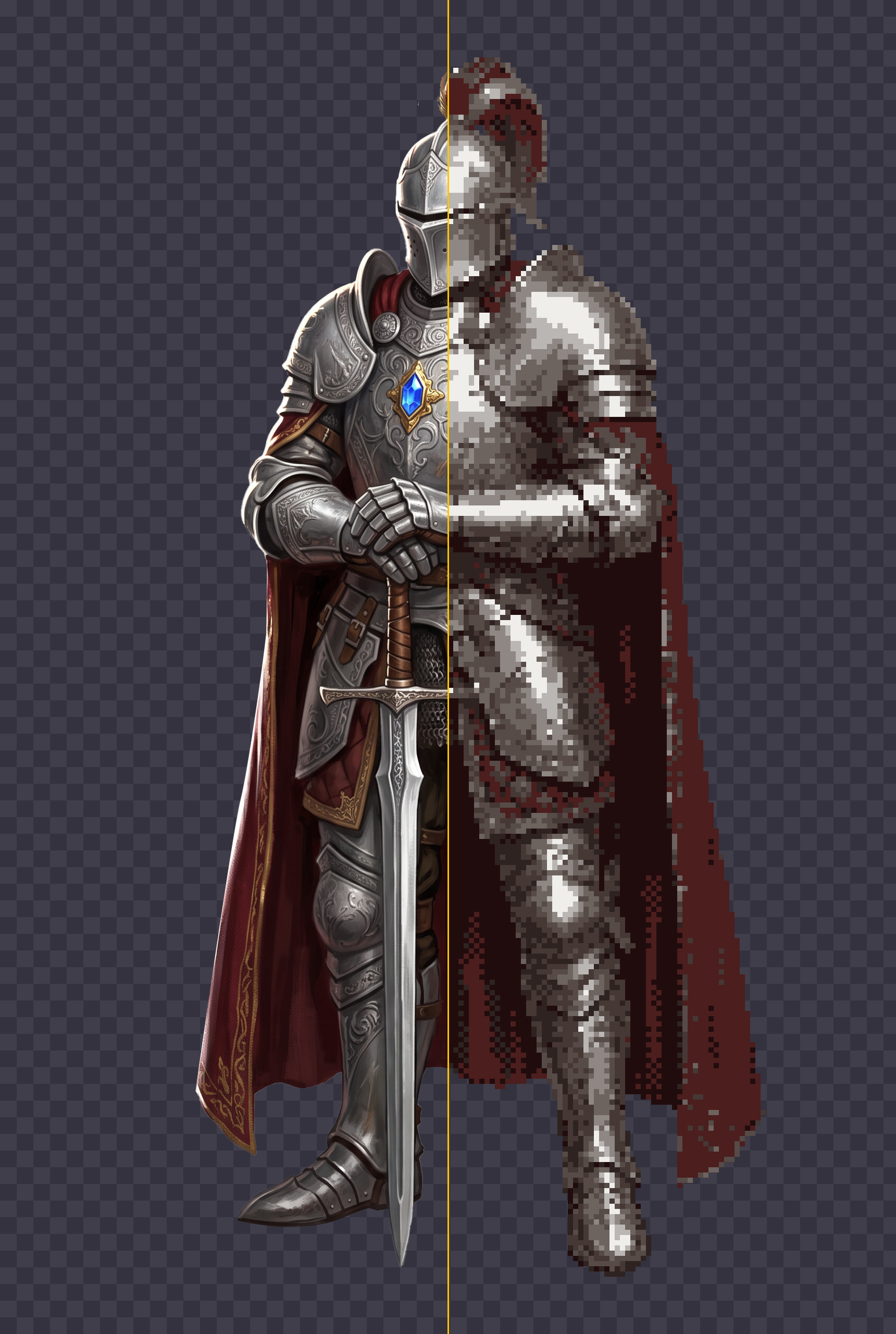
Auto Palette (10 colors) + Bayer 2×2 (0.2) — the whole character rebuilt from just ten colors chosen from the art itself by k-means++ clustering. Identity, materials and readability stay intact at a fraction of the color count.
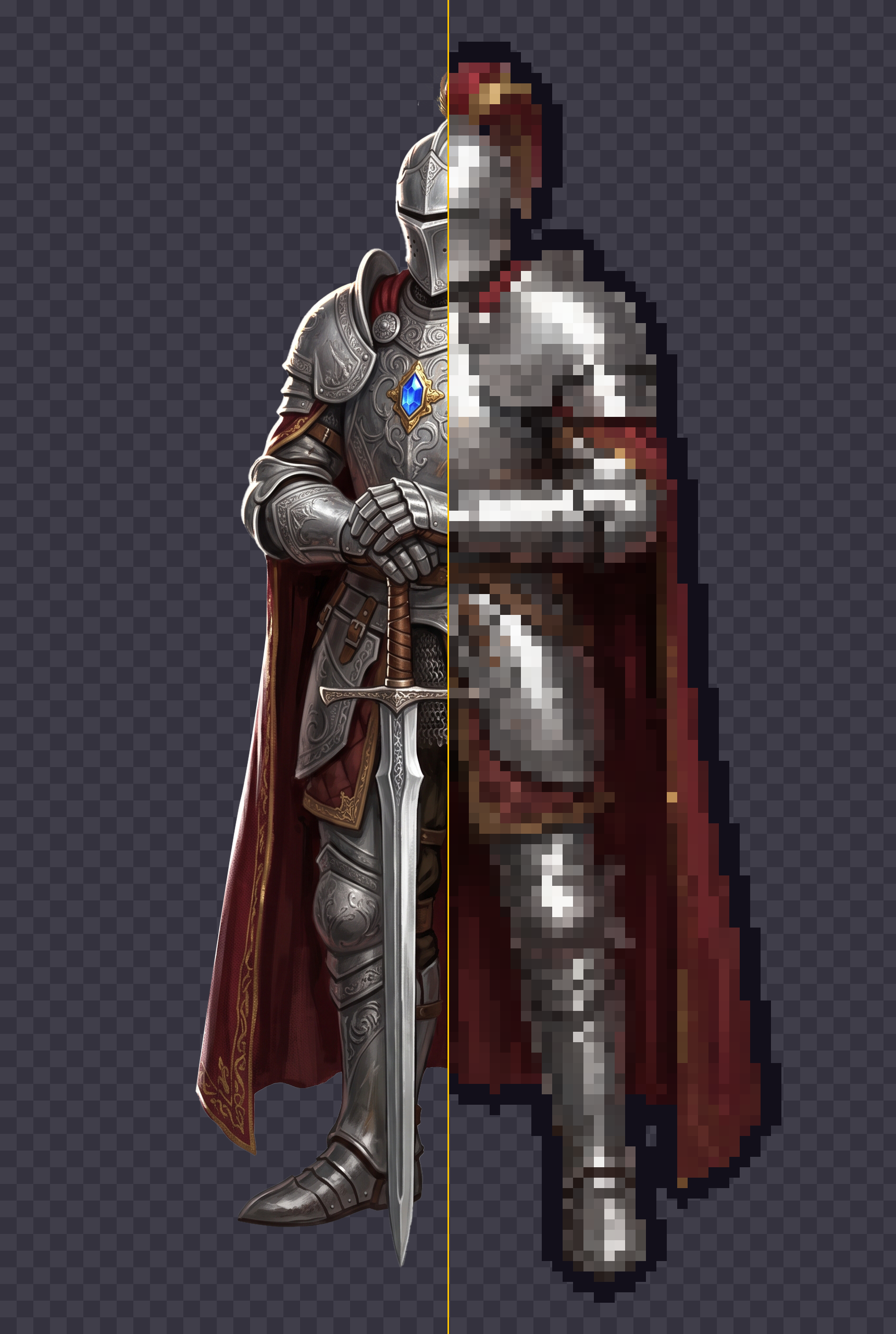
Transparency, Despeckle & Outline — character with alpha, Longest Side 128, Alpha Threshold 0.6, Despeckle on, Solid Color outline (Placement Outside, Thickness 2). The threshold cuts away soft alpha ghosting for a clean, game-ready contour; the checkerboard shows preserved transparency. Smooth alpha mode is available for soft edges instead.
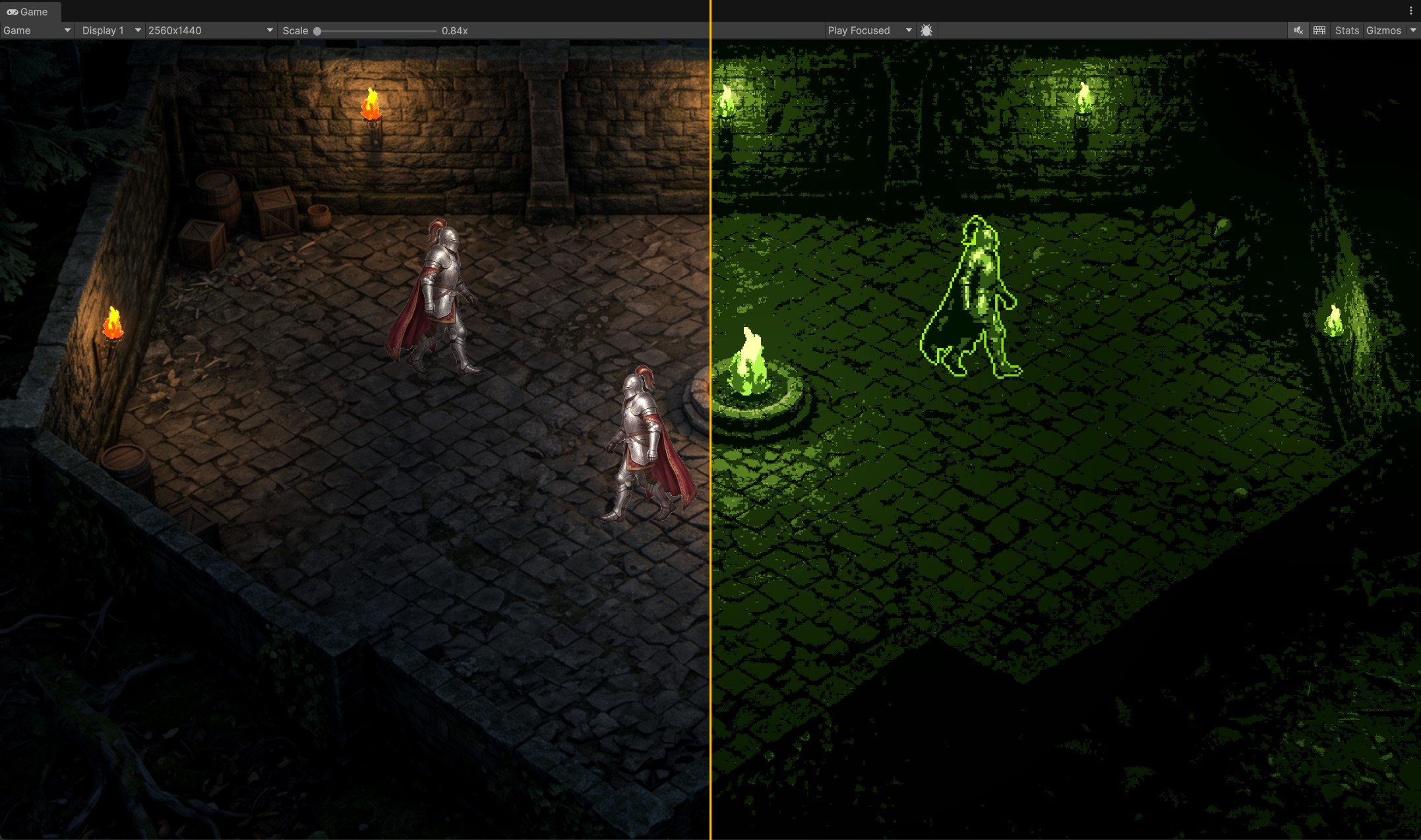
Keep World Size — one scene, left as authored, right after converting everything in it: background, tiles, props, and the animated knight and fire sheets. Pixels Per Unit is rescaled with the resolution, so walls, floor, fire pit and torches land on exactly the same world positions across the seam. The knights sit differently only because their walk cycles are still playing. Drop converted sprites into an existing scene and animations, prefabs, colliders and layout keep working untouched.
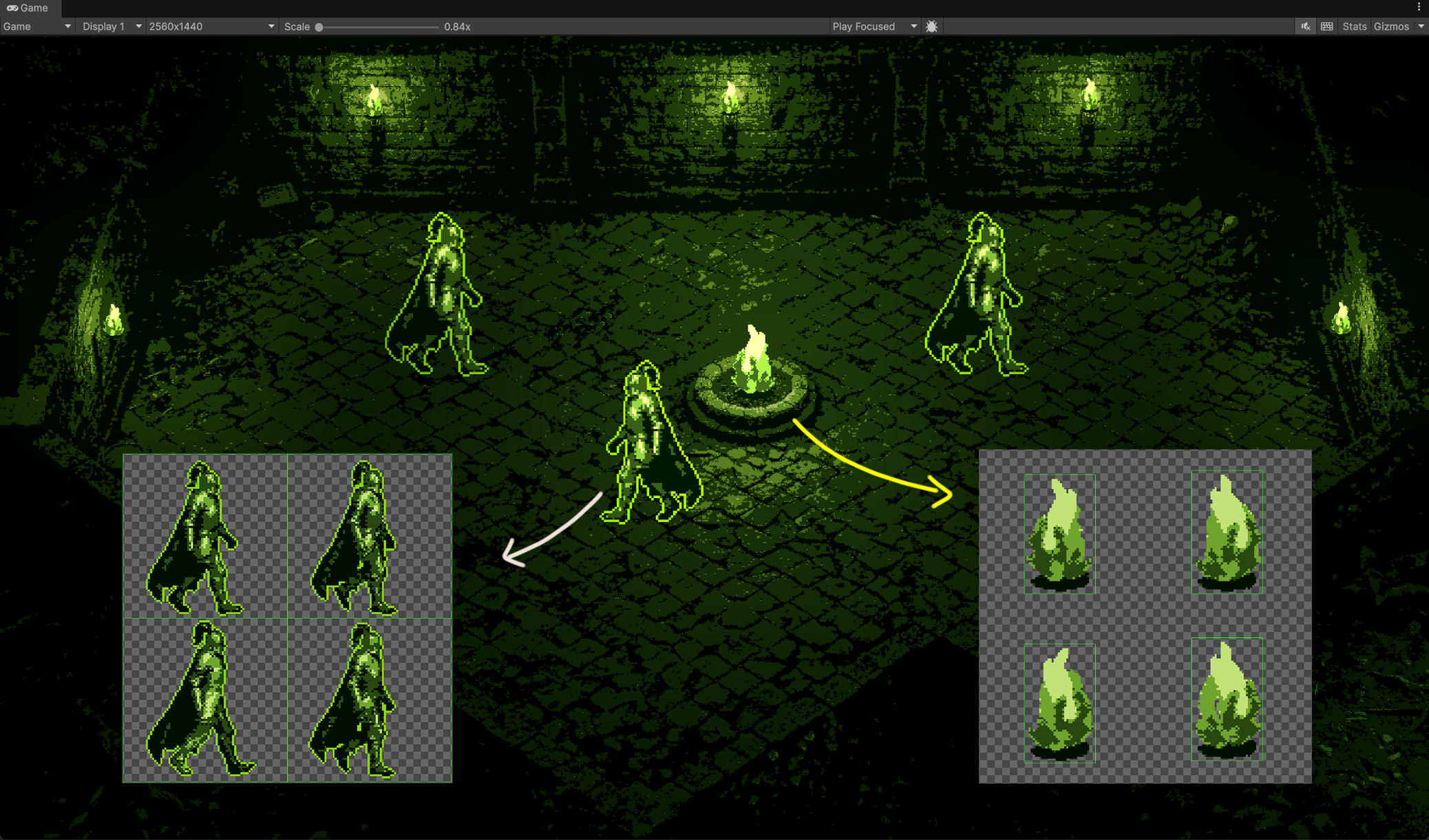
Batch conversion — every asset in this scene was converted in a single pass, then dropped straight back in. The two callouts are the sheets that drive it: the knight walk cycle and the fire animation, both re-sliced automatically at the new resolution. Subfolders are scanned recursively, and singles, multi-sprite sheets and whole folders can be mixed in the same run.
Presets
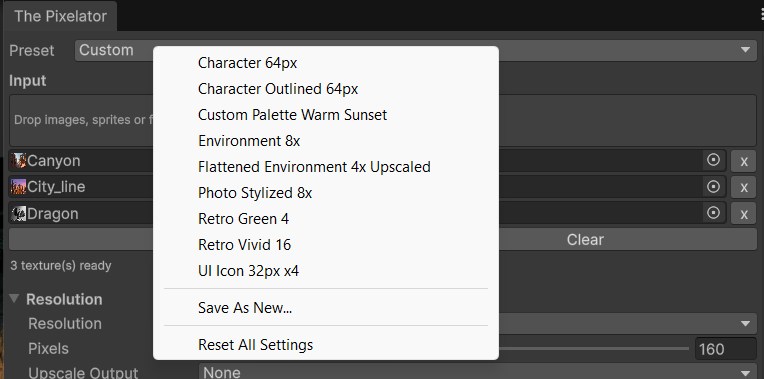
The Preset bar: save, load and update complete configurations.
The Preset dropdown at the top of the window saves and restores complete setting configurations
as plain *.pixelator.json files. Nine production-ready presets ship in
Assets/Motawea/ThePixelator/Presets: Character 64px, Character Outlined 64px,
Custom Palette Warm Sunset, Environment 8x, Flattened Environment 4x Upscaled,
Photo Stylized 8x, Retro Green 4, Retro Vivid 16, and UI Icon 32px x4 — use them
as-is or as starting points for your own. Use Save As New... to create one, Update to overwrite
the loaded preset (a * marks unsaved tweaks), and Delete to remove it. Preset files are found
anywhere in the project — move them next to your art or commit them to version control to share with your team.
Sprite Sheets
Sheets imported with Sprite Mode: Multiple get special treatment:
- Each sprite cell is resampled independently, so neighboring sprites never bleed into each other.
- All sprite rects, names, custom pivots, and 9-slice borders are rebuilt on the output at the new resolution.
- With Keep World Size enabled, animations and prefabs using the converted sheet keep their exact in-game dimensions.
Output Import Settings
Every converted texture is automatically configured for pixel art: Point filtering, no compression, no mipmaps, transparency enabled, and Full Rect sprite meshes. Outputs are standard PNG assets — use them anywhere, or delete them safely; sources are untouched.
Tips & Troubleshooting
| Result looks muddy | Use Crisp sampling, add some Edge Emphasis, or reduce the palette size. |
|---|---|
| Too noisy / speckled | Enable Despeckle, lower Edge Emphasis, or try Balanced sampling. |
| Dithering does nothing | Dithering needs a palette — pick any Palette mode other than Full Color. |
| Sprites changed size in scene | Enable Keep World Size and convert again. |
| Semi-transparent edges look rough | That is the hard alpha cutoff — adjust the Cutoff slider, or switch Alpha to Smooth. |
| Preview feels slow on huge images | Disable Auto next to the preview and refresh manually. |
Support & Contact
Questions, feature requests, and bug reports are all welcome — pick whichever channel suits you. When reporting a bug, please include your Unity version, render pipeline, and the settings or preset you used, plus the source image if you can share it. That is usually enough to reproduce it on the first try.